
Design Inspiration – Wine Label
Posted on July 5, 2013 1 Comment

Happy 4th of July everyone! Wishing everyone a great holiday!
I’m enjoying and celebrating the holidays with family and I end up seeing this amazing wine label and logo. Oh and the wine tastes great too!


Design Inspiration – Sign Art
Posted on July 4, 2013 1 Comment
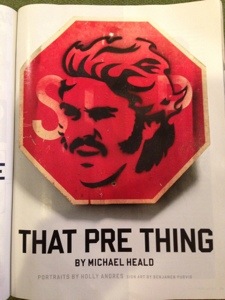
After reading one of my favorite magazines, Runner’s World (I’m training for my very first marathon), I came across this image. Created by artist Benjamen Purvis, he drew this inspiring portrait of late professional runner, Steve Prefontaine, using black graffiti on a faded stop sign. It’s a strong image representing that Steve was an unstoppable force within the running community.
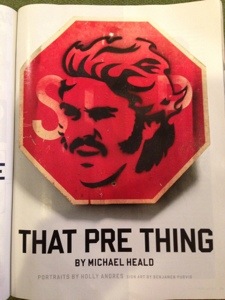
Artist: Benjamen Purvis. From “That Pre Thing,” by Michael Heald, Runner’s World, April 2013.
Portfolio Update – Corporate Invitation and Newsletters

I added the following items in the Portfolio.

This is a series of materials for an event that brought together consultants from across the country for a day and a half of education, as well as networking with colleagues and 403(b) retirement industry experts. This event was supposed to take place in Chicago this year, but was cancelled. The series includes a logo, save the date card, invitation/agenda, a banner for an HTML email version of the invitation, and binder cover. Click on the logo above to view samples or go to Portfolio > Cards and Invites > Consultant Forum 2013 – Invitation and Stationary.
Plus, the Newsletters section includes links to sample eNewsletters for the AWCNJ.
How to Add Social Media Icons to Your WordPress Blog

NOTE: This tutorial shown here is for WordPress blogs only.
Just recently, I added three social media icons (Google +, Twitter and LinkedIn) on the right sidebar so that anyone can connect with me. For the longest time, I couldn’t figure out how to add these icons on the sidebar — until now.
Here are the steps to add these icons on the right sidebar. One tip before doing this: Save yourself some time by having all your social media URLs or domains listed on a separate Word document (including “http://”). When you’re ready to link the icon, you can easily copy and paste URLs from one spot to another without opening separate web pages.
- Customize the social media icons. The logos for Facebook, Twitter, LinkedIn and Google Plus are available to use from their respective sites. They all have specific guidelines for their logos so make sure to follow their brand standards. For this example, the icon size shown on my site is 76×76 px (you can go larger if needed). The icons can be saved as a JPEG, GIF or PNG.
- Add a new post. Go to Posts from the left navigation and select “Add New.” On the Title field, I would title my post as “Social Media Icons – DO NOT Publish” so that I make sure that I don’t publish this post by accident. I use this post for the icons’ HTML code.
- Upload the icons by going to “Add Media” then upload the files. Once they are uploaded, make sure that each icon is “Left” aligned so that the icons are next to each other. Select these files and click “Insert to Post.”
- Link the icons. Go to the “Visual” tab to view the social media icons. Click on one of them and select the “Edit Image” button. Copy URL from the document, go to “Link” field under Advance settings, paste the URL on the field and click Save. Repeat this for the other icons.
- Once you’re done linking, then “Save Draft”, but DO NOT publish.
- Under the “Text” tab, select and copy the entire HTML code.
- Go to “Appearances” from the left navigation bar, then Widgets.
- Click and drag the “Text” widget to the right sidebar.
- Paste the HTML code and save the widget.
- Preview the page. The icons should be able to show on the right sidebar. Make sure links go to the correct social media sites.
This tutorial also applies to other images, such as logos and banner ads.


 yvenia.com